Sharky
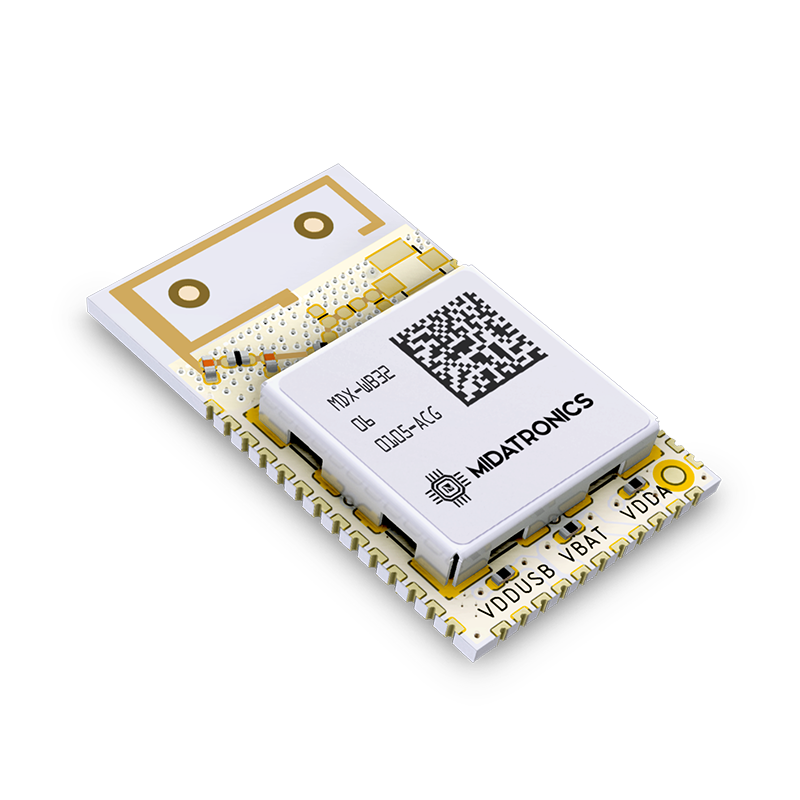
The Midatronics Sharky PCB is an IoT-certified module with an onboard PCB antenna based on the ST Microelectronics STM32WB55CEU6 system on chip, a highly integrated low power radio design with two cores in a single SoC. There is an ARM Cortex-M4 32-bit microprocessor to run your application and one ARM Cortex-M0+ 32-bit microprocessor running the radio networking Stack. The Sharky module supports BLE, Thread, ZigBee, and generic IEEE 802.15.4 protocol stacks.
About this device
The Midatronics Sharky PCB is an IoT-certified module with an onboard PCB antenna based on the ST Microelectronics STM32WB55CEU6 system on chip, a highly integrated low power radio design with two cores in a single SoC. There is an ARM Cortex-M4 32-bit microprocessor to run your application and one ARM Cortex-M0+ 32-bit microprocessor running the radio networking Stack. The Sharky module supports BLE, Thread, ZigBee, and generic IEEE 802.15.4 protocol stacks.
The Sharky supports 1 regional frequency plan and operates as a Class A LoRaWAN device.
Key features
- 1 frequency plan supported: EU863-870.
Vendor
At a glance
Hardware specifications
| Model ID | sharky-module |
| Dimensions | 16 × 27.25 × 0 mm |
| Operating temperature | -40 °C to 85 °C |
Sensors & capabilities
No sensors listed for this device.
Certifications & compliance
Standards
Network profiles
Capabilities are defined per firmware version and frequency plan, exactly as published in the repository.
Firmware 1.0
| Frequency plan | MAC | Reg. params | Class | Join | Max EIRP | Certified |
| EU863-870 | 1.0.2 | RP001-1.0.2-RevB | A | OTAA | 22 dBm | — |
Frequency plan coverage
Add to The Things Stack
Manual setup
Create an application
In The Things Stack console, go to Applications → Create application and pick a unique application ID.
Register an end device
Choose From the LoRaWAN Device Repository and search for “Sharky”. Select your firmware version and frequency plan.
Enter device credentials
Provide the DevEUI, JoinEUI and AppKey printed on the device label or QR code.
Power on & verify uplinks
Within a few minutes you'll see the join request and uplinks in the Live data tab.