
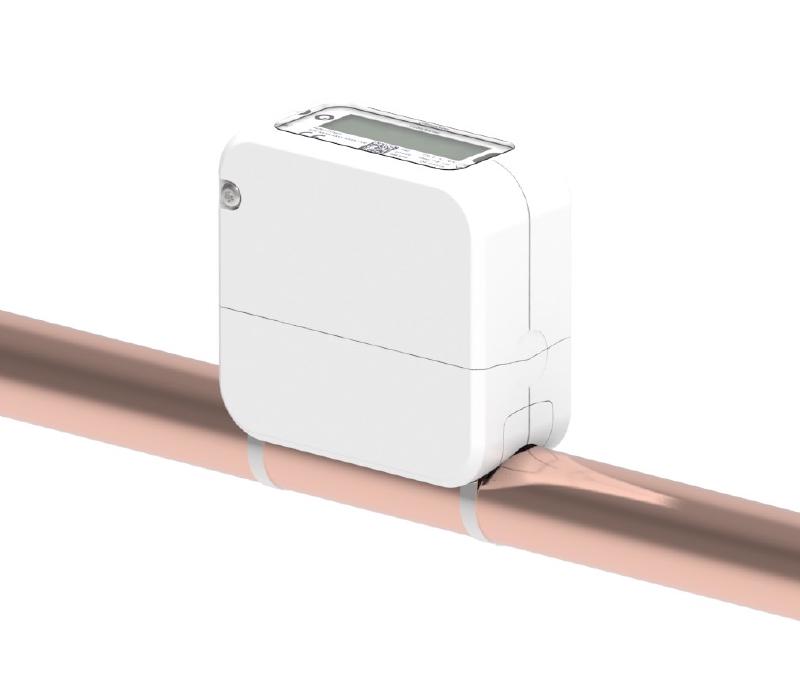
By Quandify AB
CubicMeter
Non-invasive water meter and leakage sensor
LoRa Alliance Certified
Class A
MAC v1.0.2
3.6V Li-SOCI2
1 frequency plan
About this device
Non-invasive water meter and leakage sensor
The CubicMeter supports 1 regional frequency plan and operates as a Class A LoRaWAN device.
Key features
- Sensors: battery, temperature, surface temperature, water, pulse count.
- LoRa Alliance certified, verified interoperability with The Things Stack and other LoRaWAN network servers.
- 1 frequency plan supported: EU863-870.
- Battery powered (3.6V Li-SOCI2).
Vendor
Quandify AB
3 devices in the repository
At a glance
Model IDcubicmeter
LoRaWAN classA
MAC version1.0.2
Battery3.6V Li-SOCI2
Dimensions
79 × 40 × 87 mm
Weight260 g
Hardware specifications
| Model ID | cubicmeter |
| Dimensions | 79 × 40 × 87 mm |
| Weight | 260 g |
| Power | Battery — 3.6V Li-SOCI2 |
Sensors & capabilities
Certifications & compliance
LoRa Alliance Certified
| Radio equipment | 301 489-1 (2.2.0) — ETSI |
| Radio equipment | 301 489-3 (2.1.0) — ETSI |
Standards
Designed for LoRaWAN 1.0.2
with regional parameters RP001-1.0.2-RevB.
Profiles in this repository are loaded automatically by The Things Stack.
Network profiles
Capabilities are defined per firmware version and frequency plan, exactly as published in the repository.
Firmware 1.0
| Frequency plan | MAC | Reg. params | Class | Join | Max EIRP | Certified |
| EU863-870 | 1.0.2 | RP001-1.0.2-RevB | A | OTAA | 16 dBm | ✓ Yes |
Frequency plan coverage
EU863-870
US902-928
AU915-928
AS923
AS923-2
AS923-3
KR920-923
IN865-867
RU864-870
CN470-510
EU433
AS923-4
Add to The Things Stack
Manual setup
1
Create an application
In The Things Stack console, go to Applications → Create application and pick a unique application ID.
2
Register an end device
Choose From the LoRaWAN Device Repository and search for “CubicMeter”. Select your firmware version and frequency plan.
3
Enter device credentials
Provide the DevEUI, JoinEUI and AppKey printed on the device label or QR code.
4
Power on & verify uplinks
Within a few minutes you'll see the join request and uplinks in the Live data tab.